How it works
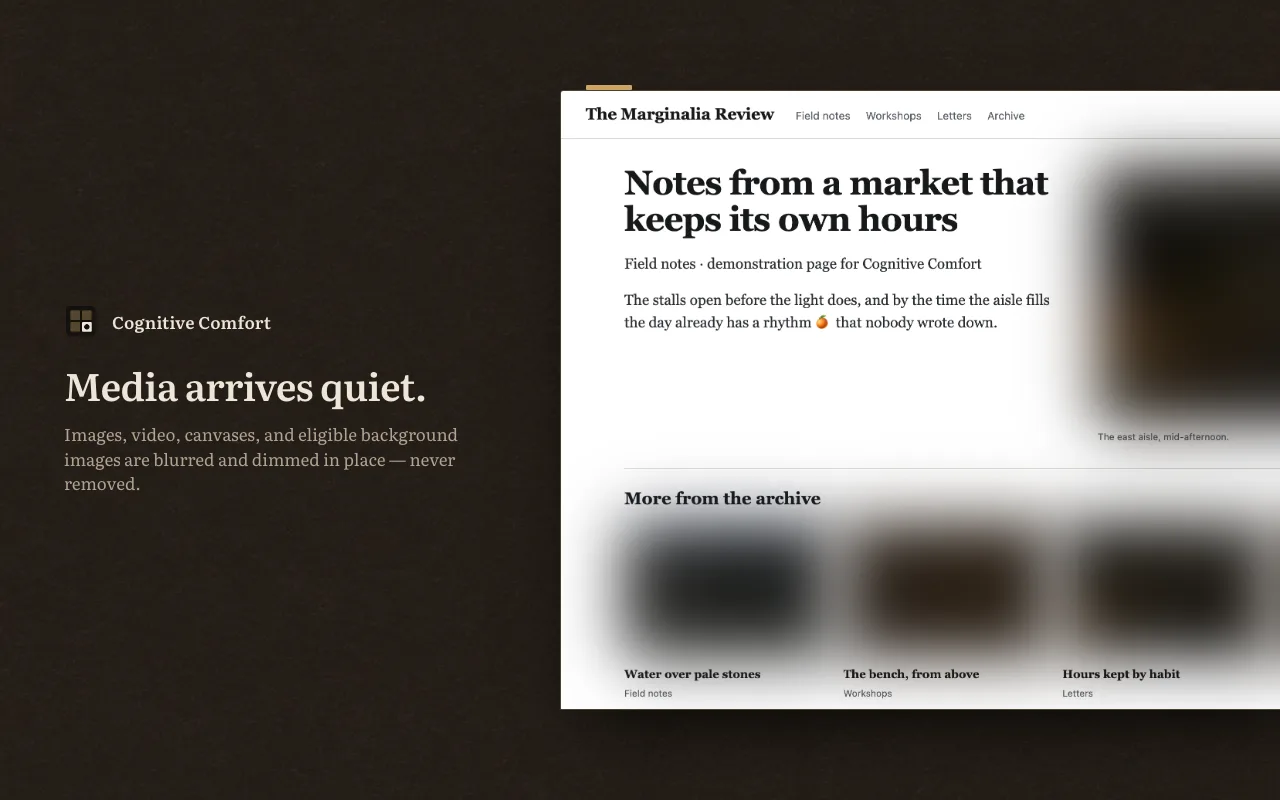
A page opens. Before you start reading, the extension finds the pictures, video, canvas elements and video embeds on it and puts a heavy blur over them. Text stays normal. Every blurred item keeps its place and its size, so the page does not jump around.
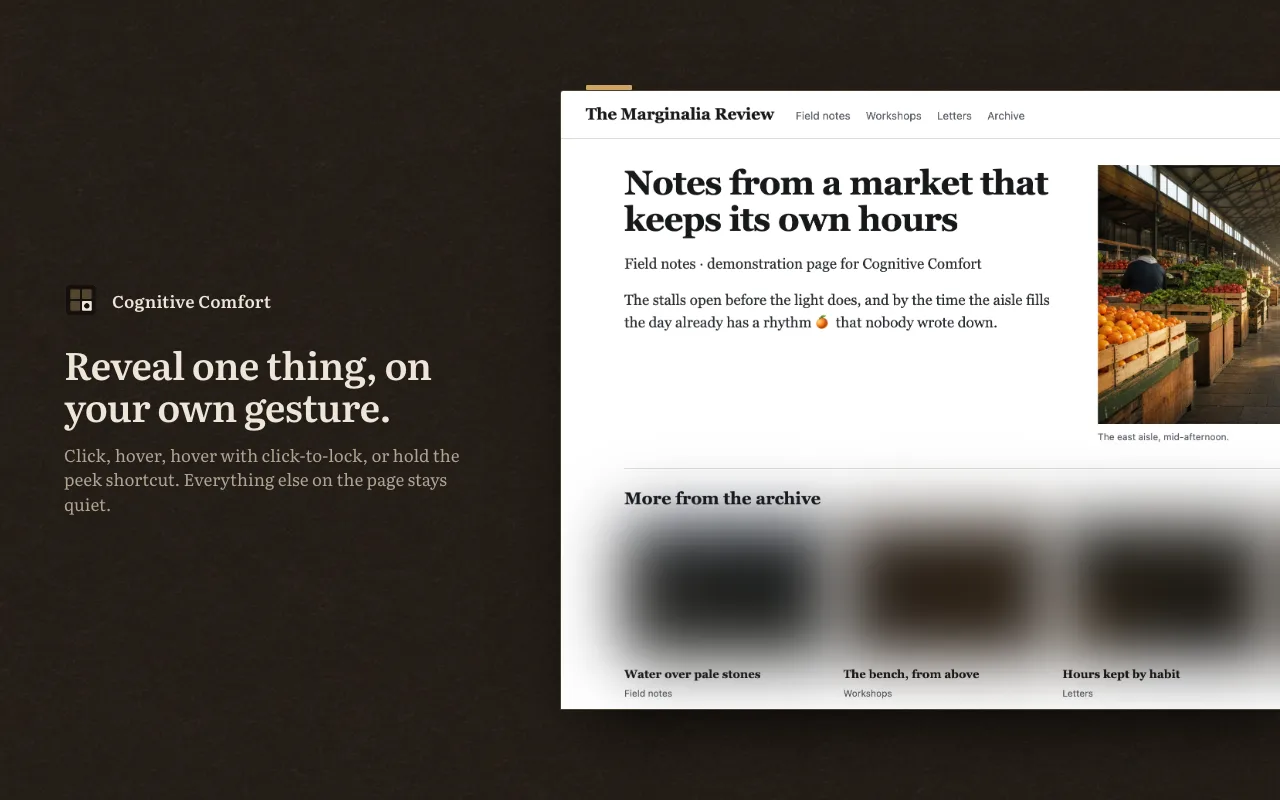
When you want to see something, you hover it or click it. That one item turns sharp. Move away, or click again, and it goes quiet. If you need to check the whole page at once, hold one key: everything comes back while you hold it, and settles when you let go.
The same thing, simpler
Imagine frosted glass in front of every picture. The picture is still there. You see the shape and the size, but not the detail, so your eyes stay on the words. Touch one picture and the glass slides away from it. Stop touching, and the glass comes back.
A blocker does something else: it takes the picture out of the page. This tool leaves the picture where it is. It only decides when you see it.
Why blur and not delete
Deleting media has a price. The layout collapses, and a sentence like "see the photo below" loses its subject. You also lose the option to change your mind, because there is nothing left to look at.
A filter keeps both sides. The page is calm while you read, and the full picture is one gesture away when the text needs it. The decision happens in the moment, not in a list of rules you wrote weeks ago.
Reveal works on a group of elements, not on one node. A gallery tile often stacks a thumbnail, a caption image and a hover layer in the same box. These come back together, so one gesture gives you one picture instead of three broken pieces of it.
Three ways to reveal
People read in different ways, so the gesture is a setting. Each sample below answers only to its own mode. Try all three.
Click only
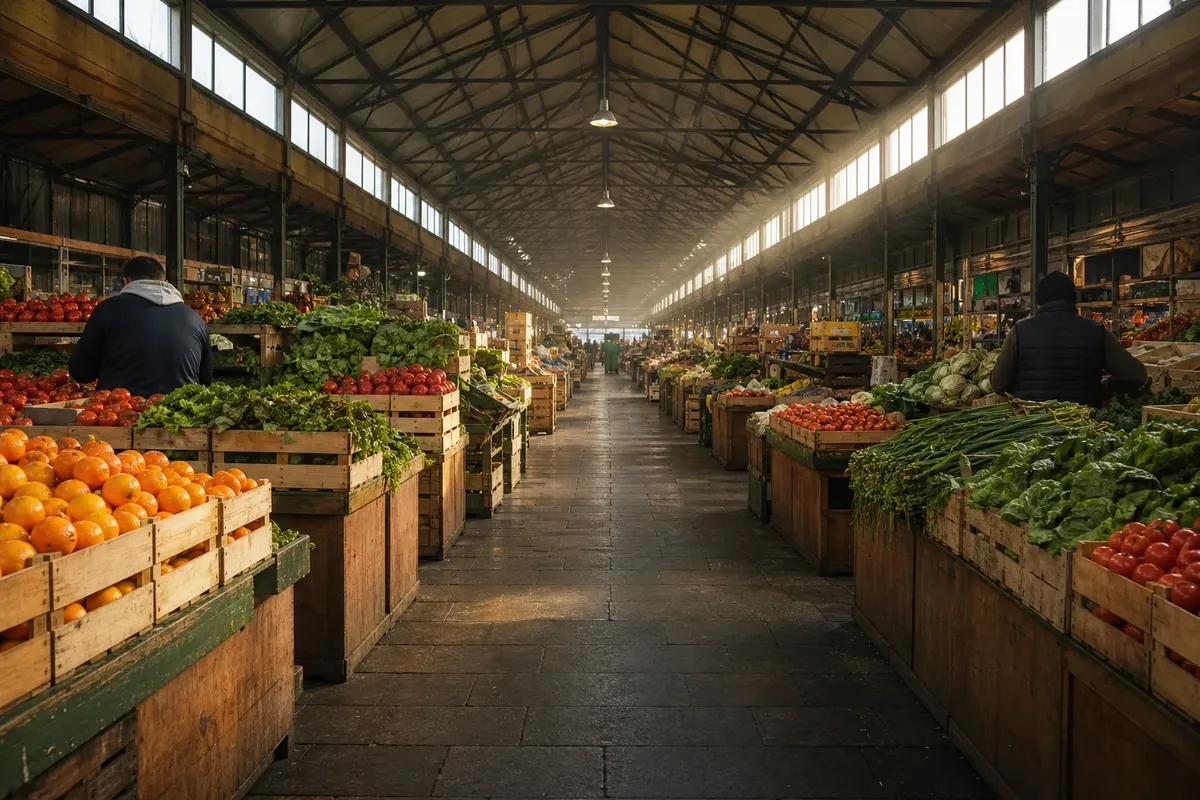
Hover does nothing. The first click reveals the picture and does not follow the link under it, so you do not leave the page when you only wanted to look. The second click follows the link as usual.
Hover only
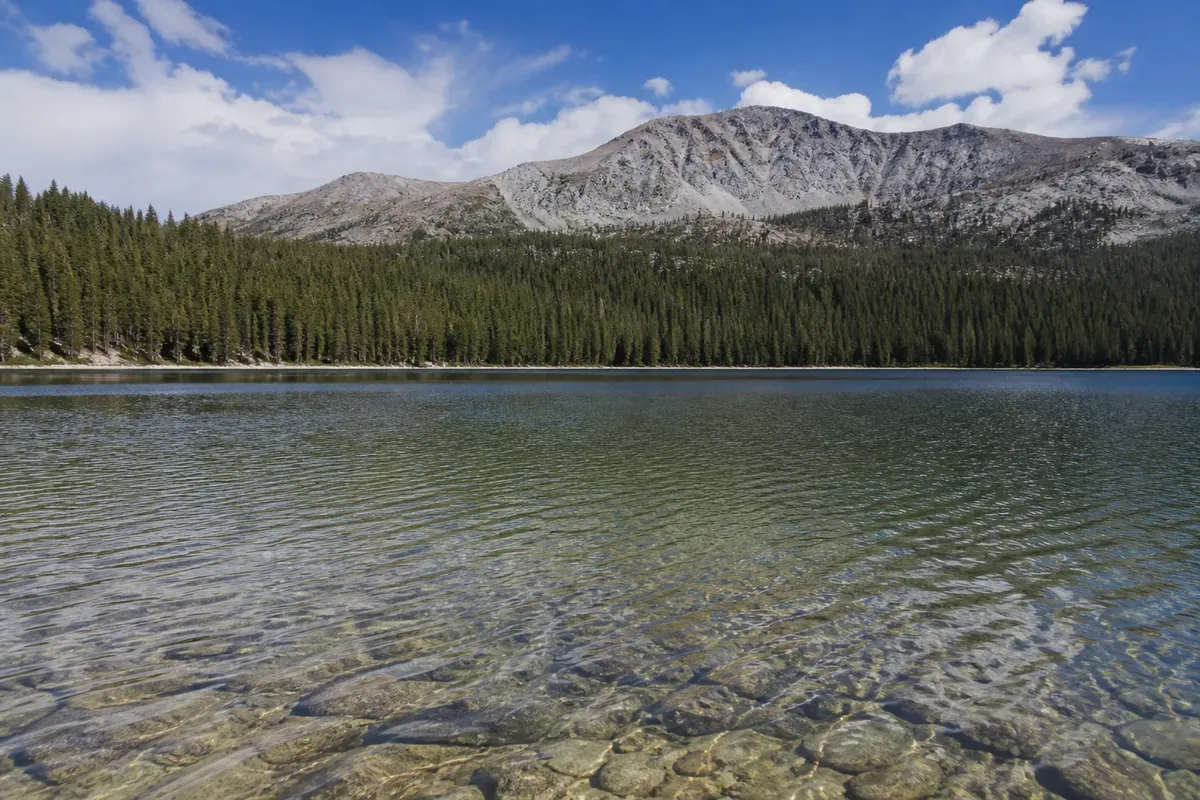
Sharp while the pointer is on it, quiet when the pointer leaves. Good on a long index page, when you want to find one picture and keep moving.
Hover + click lock

The default. Hover to look, click to keep it sharp while you read around it, click again to put it back. This is the mode the extension starts with.
Peek: the whole page, for a moment
Sometimes the question is not one picture. You want to know what is on this page at all. Hold the peek shortcut, Ctrl+Shift+A by default, and every hidden picture and emoji comes back while you hold it. Let go, and the page returns to the state it was in.
One limit. Browsers tell an extension when its shortcut is pressed, but not when it is released. So when peek starts from the browser shortcut, it shows the page for about a third of a second, not for as long as you hold the keys.
Rules for each site
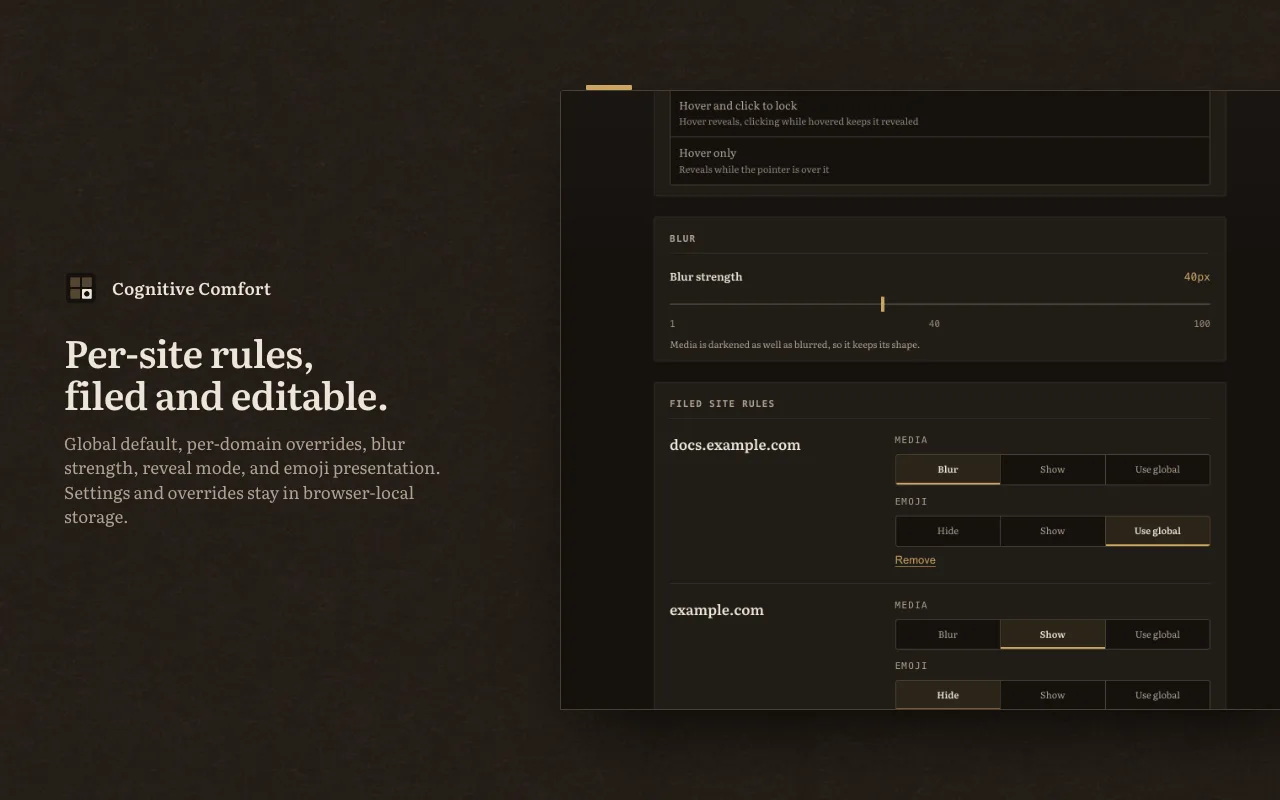
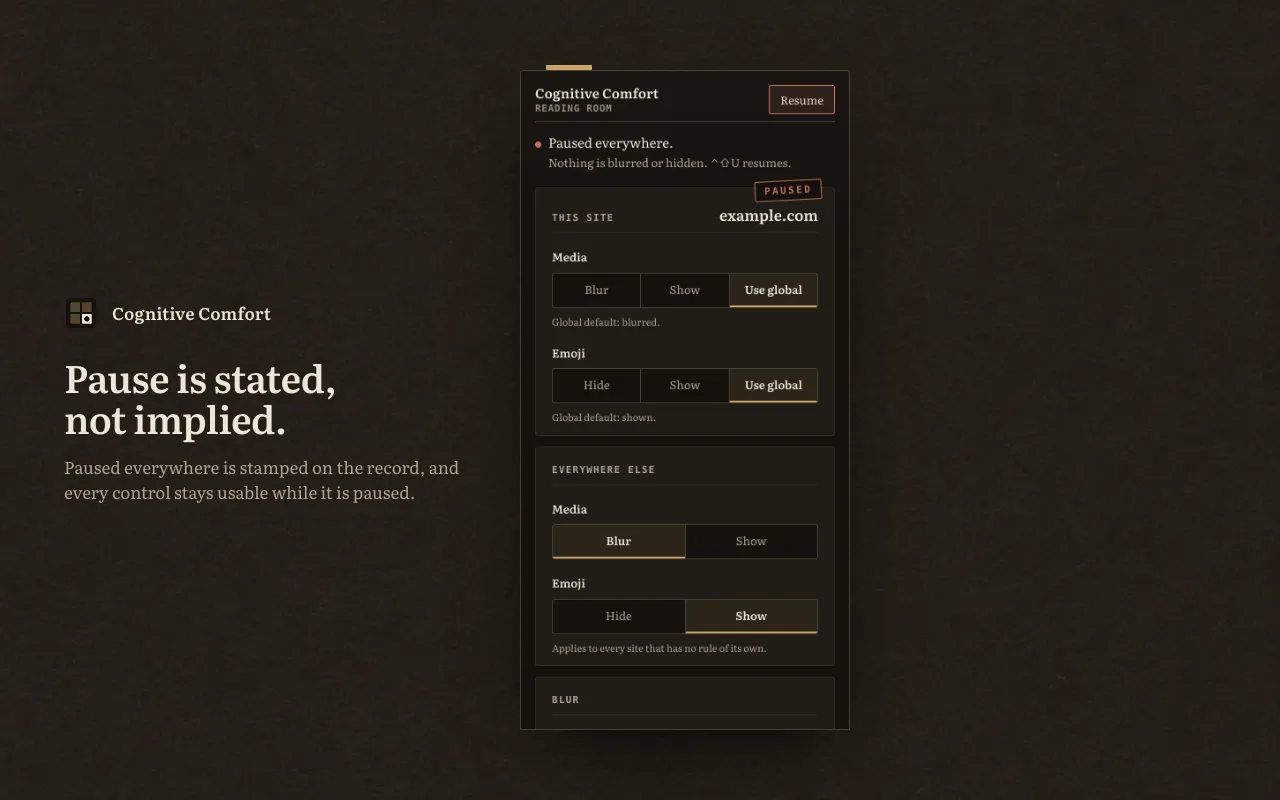
One global default covers the whole web. On top of it you add exceptions: always show media in your photo library, always blur it in the feed where you lose an hour. Rules are saved per domain, and you can edit them later on the options page, not only on the site where you made them.
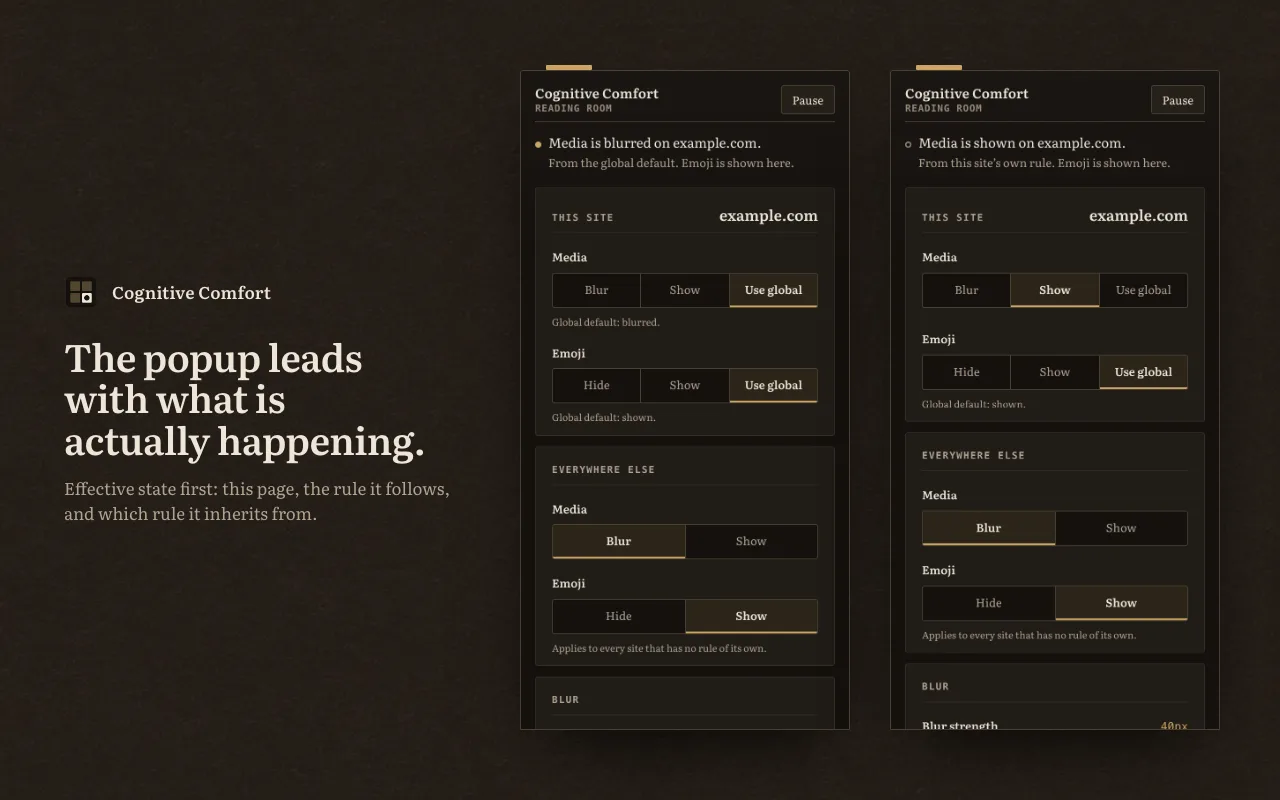
When two rules could apply, the order is fixed and visible in the popup. The top row wins.
- PausedEverything off, everywhere, until you resume.
- Exact domainA rule for
docs.example.com. - Base domainA rule for
example.com, inherited by its subdomains. - Global defaultWhat happens on every site with no rule of its own.
The popup starts with the result in one sentence, for example "Media is blurred on example.com. From the global default." What happens now is more useful to know than what is stored. Emoji follows the same order and has its own default, so you can blur media everywhere and leave text alone.
What counts as media
You choose one of two scopes in settings.
- Content media: images,
picture,video,canvas, known video embeds, and background images that are large enough to matter. Tracking pixels of one by one pixel are skipped. - Content and small interface media: the default. It adds SVG and the small media inside buttons and links, which is where icon-heavy web apps live.
No detector finds everything. Media drawn by a custom canvas renderer, an unusual embed, or media inside a closed shadow root can stay sharp.
Emoji works differently
Emoji are text, so a blur does not help. When emoji hiding is on, the extension wraps the
matching characters in a local span and hides them. Switch it off and the
wrapper is removed, so the original text comes back. This is the only place where the
extension touches page text, and it ships off by default.
Keyboard
| Action | Default |
|---|---|
| Peek while held | Ctrl+Shift+A |
| Toggle global media | Ctrl+Shift+E |
| Pause or resume | Ctrl+Shift+U |
| Toggle current site | Ctrl+Shift+O |
The browser owns these shortcuts, not the extension. They can be empty, or already taken by something else. You change them in the browser's own shortcut settings, and the popup links straight there. On macOS they use Control, not Command.
How it is built
For readers who want to know how it works inside.
- A content script runs in every page. It decides what to quiet from the element type, the computed style and the geometry, then marks the element. The mark plus one stylesheet does the rest, so no media element is moved, wrapped or replaced, and reveal is the same mark going away. Emoji hiding is the exception, because text has to be wrapped to disappear.
- Pages keep changing after load. Observers watch for new nodes, new background images and new emoji text, and apply the same decision to them. Open shadow roots are searched as well.
- Reveal works on a group of related elements, not on one node. When a peek ends, the page returns to how it was before, including the pictures you kept open.
- Settings are kept in one place in browser-local storage. The popup, the options page and every open tab follow that one copy, so a change made in one place shows everywhere at once.
- One codebase, built with WXT: Manifest V3 for Chrome and Edge, Manifest V2 for Firefox, and a native wrapper app for Safari.
Where your settings live
Everything is local. There is no account, no server, no analytics and no remote code, and the extension makes no network request of its own. It stores one key in browser-local storage: your defaults, and the domains where you added a rule.
To do the job, the content script reads the page: elements, computed styles, geometry and text nodes. That is local reading, not sending. It is a reading comfort tool, not a privacy shield, and it does not change what a website does.
What it is not
- Not an ad blocker or content filter. It hides nothing permanently and blocks no requests.
- Not parental control. Anyone at the keyboard can reveal anything in one gesture.
- Not a privacy or security product.
- Not a medical or therapy tool, and not a productivity promise. It changes how a page looks, nothing more.
- Not able to catch every picture on every page.